

Campaigns List
Purpose
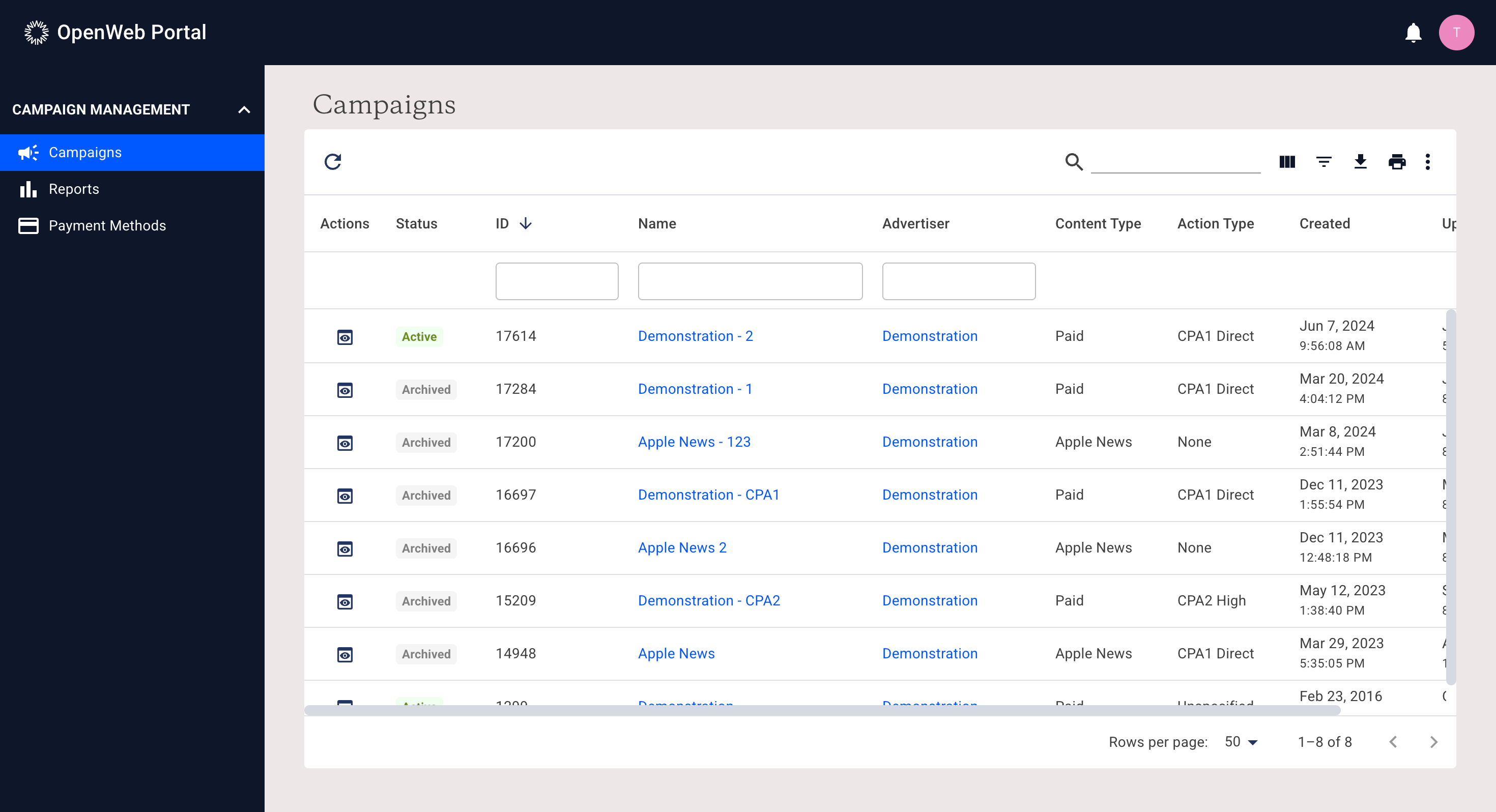
The Campaign List page provides advertisers with a centralized view of all campaigns they have access to. From this page, users can:
- Review campaign status and metadata
- Search and filter campaigns
- Access campaign details
- Quickly inspect and edit campaign lines
This page is designed for high-level campaign oversight and rapid operational adjustments.
Page Overview
When the Campaign List page loads, it displays all campaigns associated with the user’s account in a structured data table.
The table supports:
- Column filtering
- Global search across all visible columns
- Column visibility toggling
- CSV export of the current filtered view
- Print view of the current table state
- Pagination and adjustable row count
Clicking a campaign name navigates to the Campaign Detail page.
Campaign Data Table Columns
The following columns are available in the Campaign List table:
| Column | Description |
|---|---|
| Actions | Click to show the quick info and actions side panel. |
| Campaign Status | Current delivery state of the campaign (e.g., active, paused, completed). |
| Campaign ID | Unique internal identifier for the campaign. |
| Campaign Name | User-defined campaign name. Clicking this opens the Campaign Detail page. |
| Advertiser Company | Company associated with the campaign. Relevant for users with access to multiple companies. |
| Content Type | Classification of the campaign (e.g., paid campaign, external campaign, or other internal types). |
| Campaign Action Type | Defines the primary optimization or billing model for the campaign. |
| Created Date | Date the campaign was created. |
| Updated Date | Most recent date the campaign was modified. |
Quick Actions & Side Panel
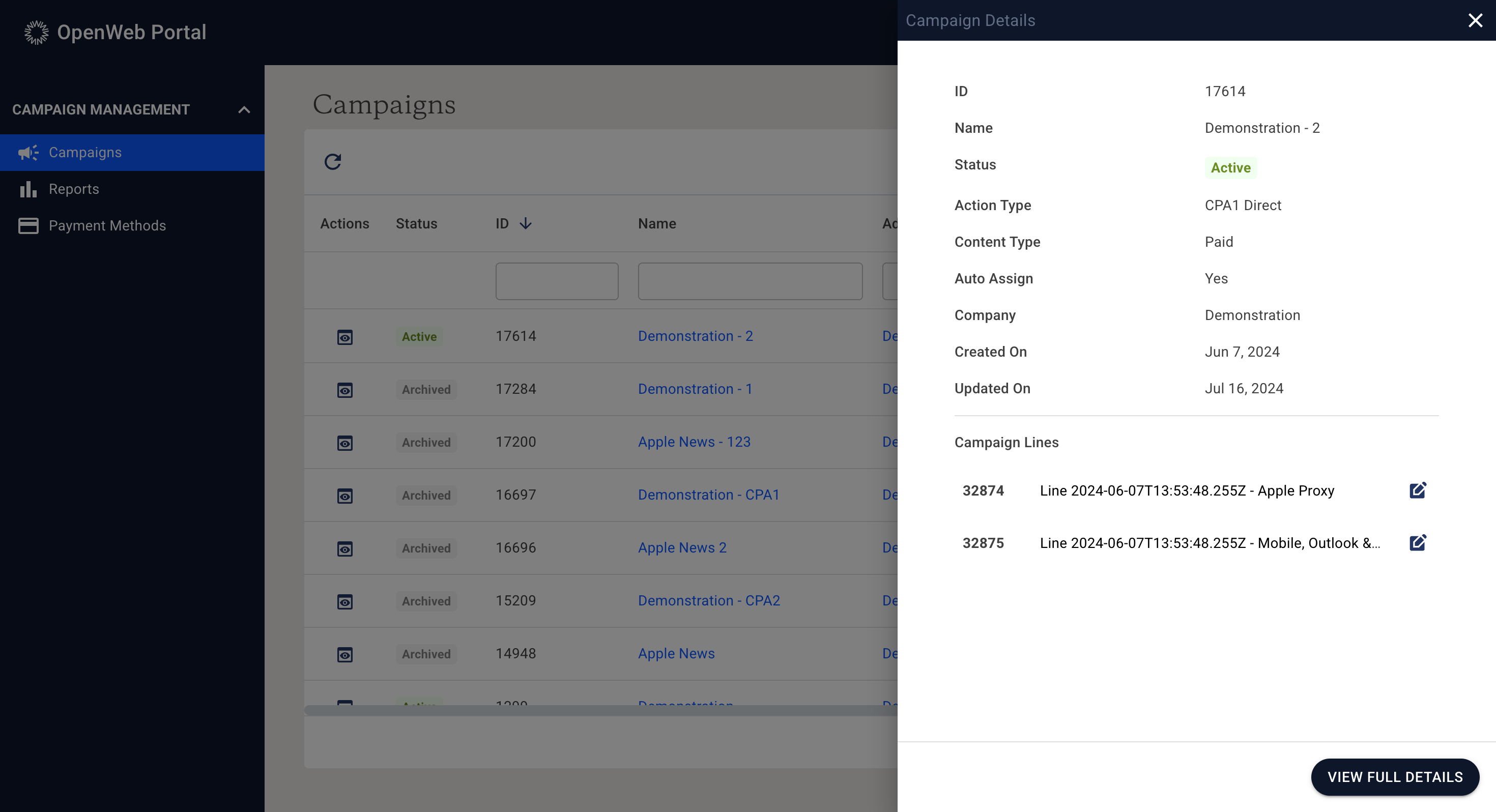
Each campaign row includes a Quick Action control in the first column.
Selecting this control opens a slide-out side panel that displays:
- High-level campaign metadata
- A list of associated campaign lines
- Key status and budget information
This allows users to review campaign structure without leaving the Campaign List page.
Editing Campaign Lines from the List View
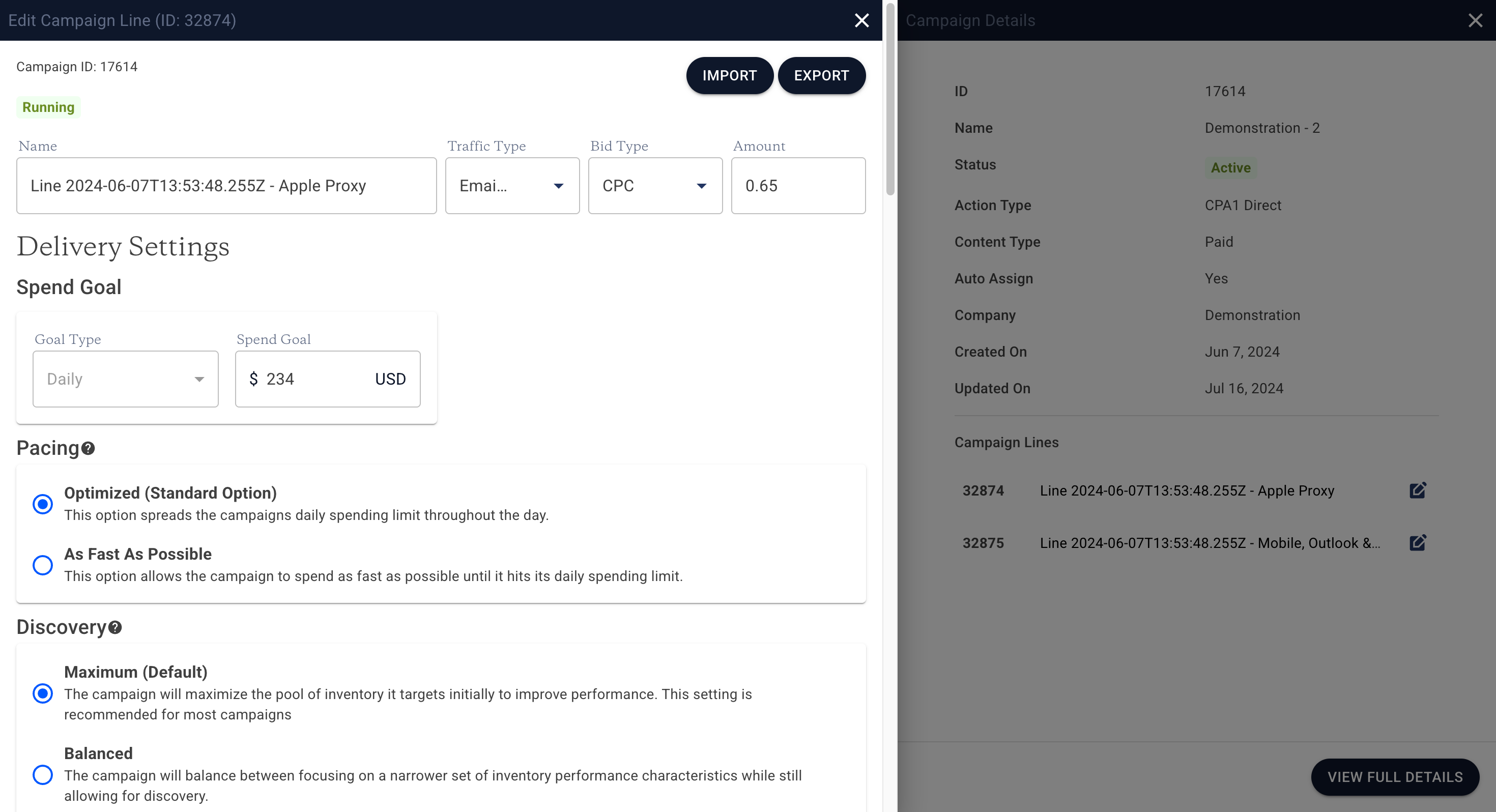
From the slide-out campaign panel, users can select an individual campaign line to edit.
Selecting a campaign line opens a secondary slide-out panel containing the full configuration settings for that line. Depending on user permissions, editable fields may include:
- Budget settings
- Schedule
- Targeting
- Bidding configuration
- Status controls
Changes made in this panel are saved directly to the campaign line configuration.
Table Controls & Functionality
Search
The search bar performs a global search across all visible columns in the table.
Column Filtering
Users can filter individual columns to narrow results based on specific criteria.
Column Visibility
Columns can be toggled on or off to customize the table view.
Export to CSV
Exporting to CSV downloads the current table view, including:
- Active filters
- Selected columns
- Current sort order
Only the rows visible under the applied filters will be included in the export.
Print View
The Print option generates a printable version of the current table state.
Pagination & Row Display
Users can:
- Adjust the number of rows shown per page
- Navigate between pages if the result set exceeds the visible rows
Navigation
Clicking a campaign name in the table navigates to the Campaign Detail page, where users can view performance data, reporting, and detailed configuration.
Updated 7 months ago