

Campaign Details
Purpose
The Campaign Details page provides operational control and structured visibility into a single campaign. From this page, users can:
- Review campaign metadata and spend progress
- Monitor performance against goals
- Manage campaign lines
- Manage associated creatives
This page separates high-level campaign status from line-level configuration and creative-level control.
Page Structure Overview
At the top of the page:
- A breadcrumb indicates the current campaign context.
- Users can quickly return to the Campaign List page.
Below the breadcrumb are three primary tabs:
- Overview
- Campaign Lines
- Creatives
Each tab serves a distinct purpose and is described below.
Overview Tab
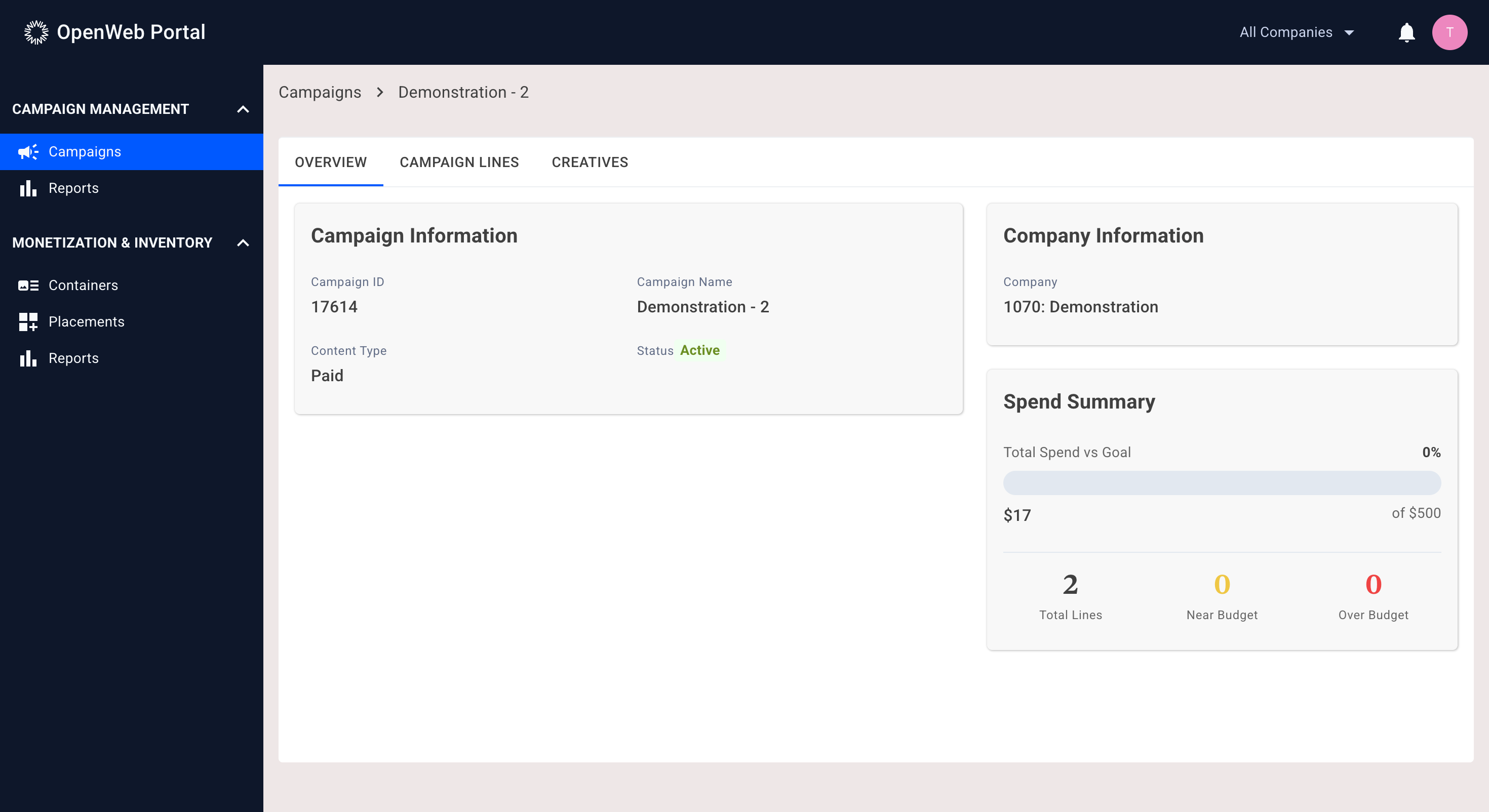
The Overview tab provides summary-level information and goal tracking.
Campaign Information
Displays core campaign metadata, including:
- Campaign ID
- Campaign Name
- Campaign Type
- Campaign Status
This section is read-only and provides reference-level information.
Company Details
Displays:
- Advertiser Company ID
- Advertiser Company Name
This is especially relevant for users with access to multiple companies.
Spend Summary
The Spend Summary visualizes campaign pacing against its total goal.
It includes:
- Percentage of goal spent
- Visual progress bar
- Current spend relative to total goal (e.g., $99 of $500)
This section allows users to quickly determine whether a campaign is:
- On pace
- Underspending
- Approaching its goal
Line Status Summary
Below the spend summary:
- Total number of campaign lines
- Number of lines nearing their goal
- Number of lines exceeding their goal
This provides a quick operational health snapshot of the campaign.
Campaign Lines Tab
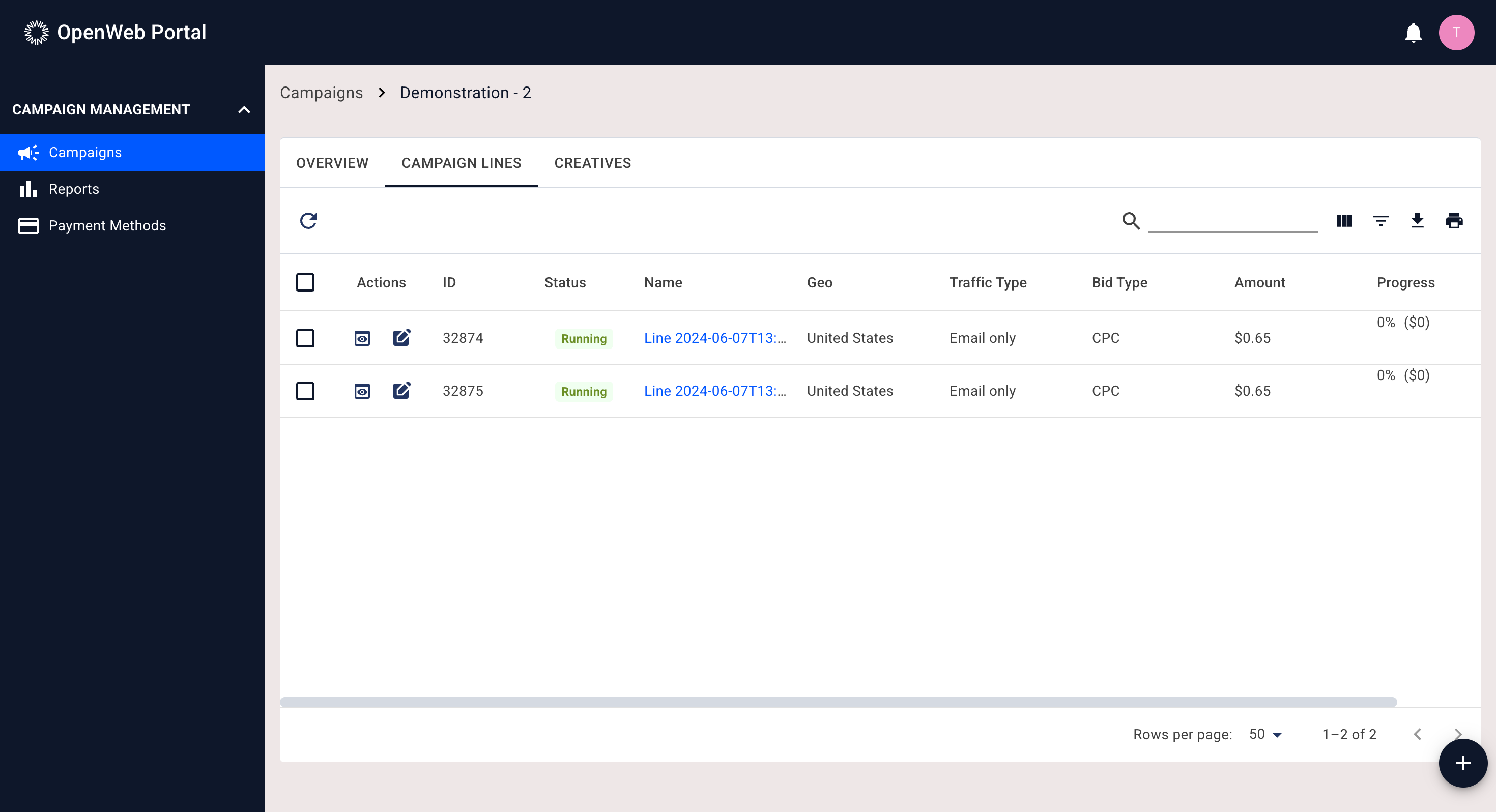
The Campaign Lines tab provides line-level configuration and management.
The tab displays campaign lines in a structured data table with:
- Search functionality
- Column filtering
- Pagination
- Adjustable row count
Campaign Lines Table Columns
| Column | Description |
|---|---|
| Select Checkbox | Enables selection for bulk actions. |
| Quick Actions | Provides access to line details and quick edit functionality. |
| Line ID | Unique identifier for the campaign line. |
| Status | Current delivery state (e.g., active, paused, archived). |
| Line Name | User-defined name. Clicking navigates to the Line Detail page. |
| Geo | Geographic targeting configuration. |
| Traffic Type | Type of traffic targeted by the line. |
| Bid Type & Amount | Bidding model and associated amount (e.g., $0.25 CPC). |
| Spend Progress | Percentage of goal spent for the line along with current spend relative to goal. |
| Goal | Configured goal for the line. |
Line-Level Actions
Quick View
Selecting the Quick View control opens a slide-out panel displaying:
- Line metadata
- Status
- Budget and targeting information
This allows users to review line configuration without leaving the page.
Quick Edit
Selecting the Quick Edit control opens a slide-out configuration panel identical to the edit panel accessed from the Campaign List page.
Users can modify line settings directly from this view.
Bulk & Multi-Select Actions
Selecting one or more campaign lines enables additional controls:
- Bulk Edit
- Status Update (activate, pause, archive)
If exactly one campaign line is selected:
- Clone Line becomes available
Bulk Edit
Bulk Edit opens a slide-out panel allowing users to modify supported fields across multiple lines simultaneously.
Currently supported:
- Bid amount
Additional bulk-editable fields may be introduced over time.
Status Changes
The Status dropdown allows users to:
- Activate
- Pause
- Archive
Status changes apply immediately to selected lines.
Creating a New Campaign Line
In the lower-right corner of the Campaign Lines tab is a "+" action.
Selecting this opens a slide-out panel used to create a new campaign line. The configuration interface mirrors the Line Edit panel.
Creatives Tab
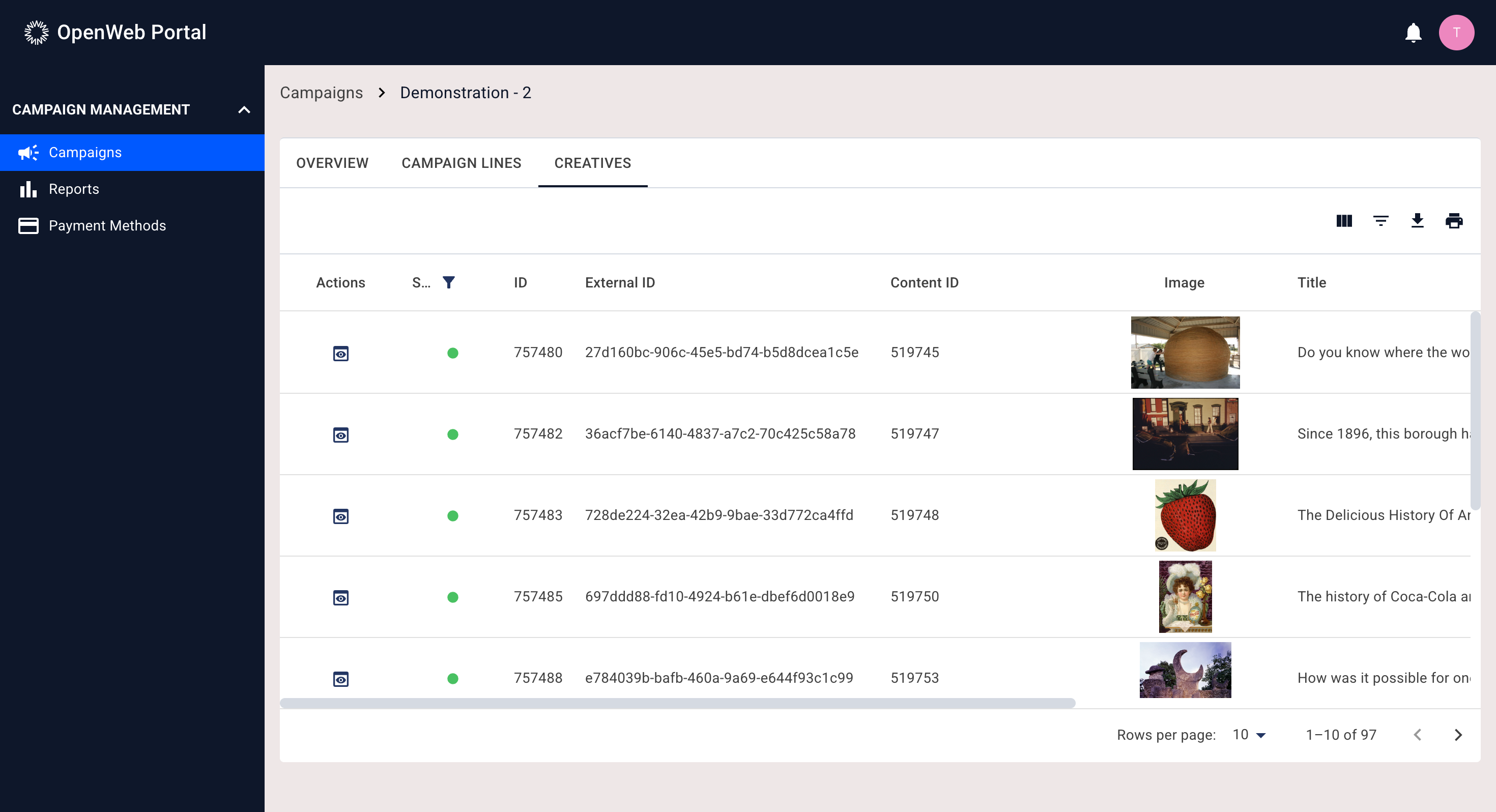
The Creatives tab manages all creatives associated with the campaign.
It displays a data table with:
- Pagination
- Column filtering
- Row display controls
Note: This table does not include global search.
Creatives Table Columns
| Column | Description |
|---|---|
| Quick Actions | Opens creative details in a slide-out panel. |
| Status Toggle | Enables or disables a creative. |
| Creative ID | Internal identifier. |
| External ID | Internal identifier. |
| Content ID | Internal content tracking identifier. |
| Creative Image | Visual representation of the creative. |
| Title | Creative title, if applicable. |
| Subtitle | Creative subtitle, if applicable. |
| Landing Page | Destination URL. |
| Rating | Internal quality rating. |
Creative Details Panel
Selecting Quick Actions opens a slide-out panel displaying:
- Creative metadata.
- Content details.
- Associated configuration fields.
Design Principles of This Section
This page separates control layers:
- Campaign-level oversight (Overview)
- Line-level configuration (Campaign Lines)
- Creative-level management (Creatives)
Users can operate at the appropriate level without navigating back to the main Campaign List.
Updated 7 months ago